
Activate BSNL Wi-Fi Calling on Android and iPhone with this easy step-by-step guide. Improve call quality in low network areas.
Before We Start: The Quick Checklist
You don’t need to be a tech wizard to do this, but you do need three things:
- A Compatible Smartphone: Most smartphones released after 2020-2021 support VoWiFi out of the box.
- An Active BSNL 4G SIM: You need an active plan.
- A Wi-Fi Connection: This is crucial. You must be connected to a Wi-Fi network (it doesn’t have to be BSNL Fiber; any stable Wi-Fi works).
Benefits of BSNL Wi-Fi Calling
Here are some key advantages of using Wi-Fi Calling on BSNL:
- Clear and stable call quality
- Works in low or no network areas
- No additional cost or separate app required
- Seamless switching between Wi-Fi and mobile network
- Improved indoor coverage
If you already have a Wi-Fi connection at home or work, Wi-Fi Calling can significantly improve your calling experience.
Requirements to Use BSNL Wi-Fi Calling
Before activating the feature, make sure you meet the following requirements:
- A BSNL 4G SIM
- A Wi-Fi Calling supported smartphone
- Latest software update installed on your device
- An active Wi-Fi connection
- VoLTE enabled on your SIM
Most modern Android and iPhone models support Wi-Fi Calling, but availability may vary depending on device and software version.
How to Activate BSNL Wi-Fi Calling on Android Devices
Follow these simple steps to enable Wi-Fi Calling on an Android phone:
- Open Settings on your phone
- Tap on Network & Internet or Connections
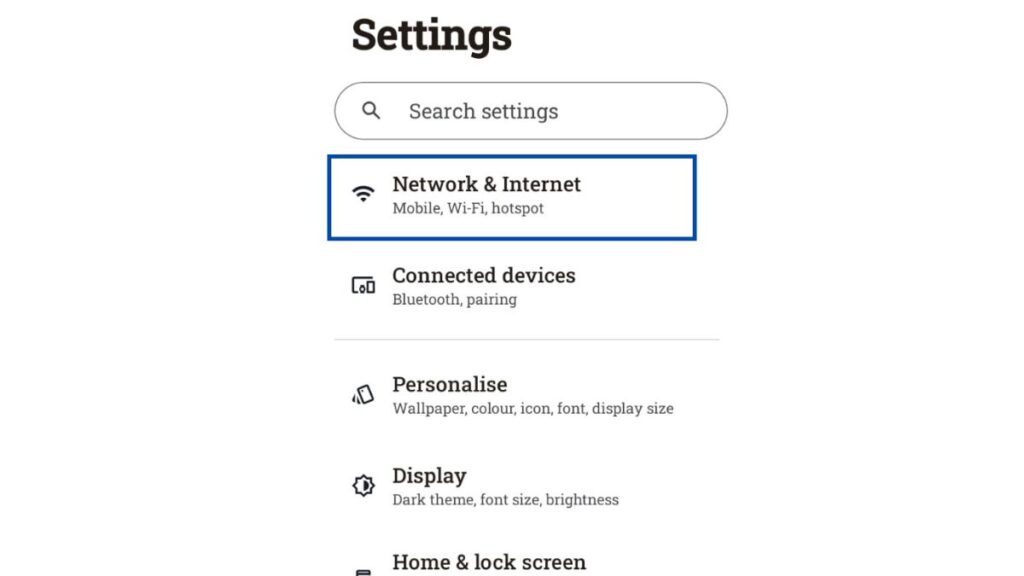
- Select Mobile Network or SIM settings
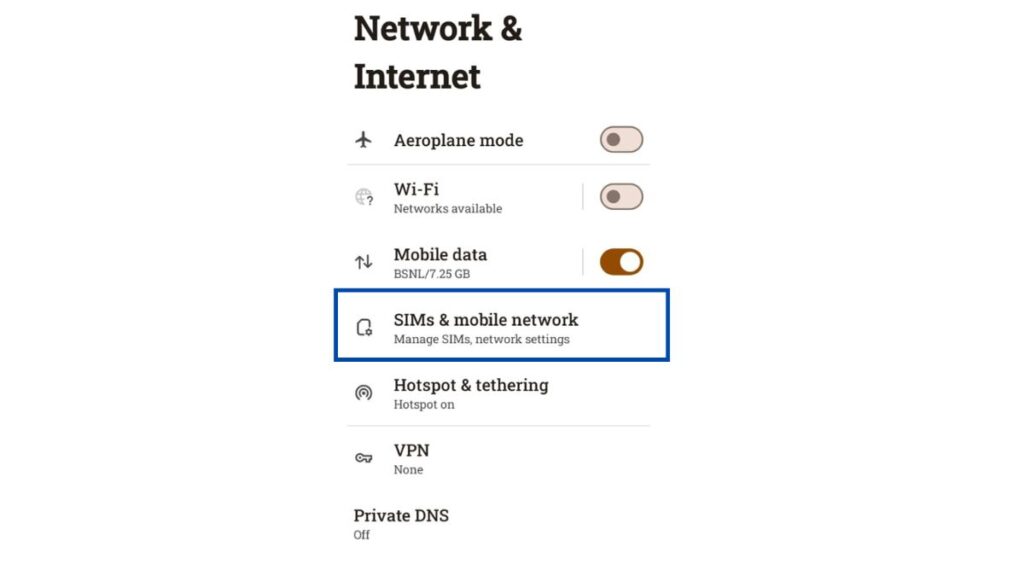
- Choose your BSNL SIM
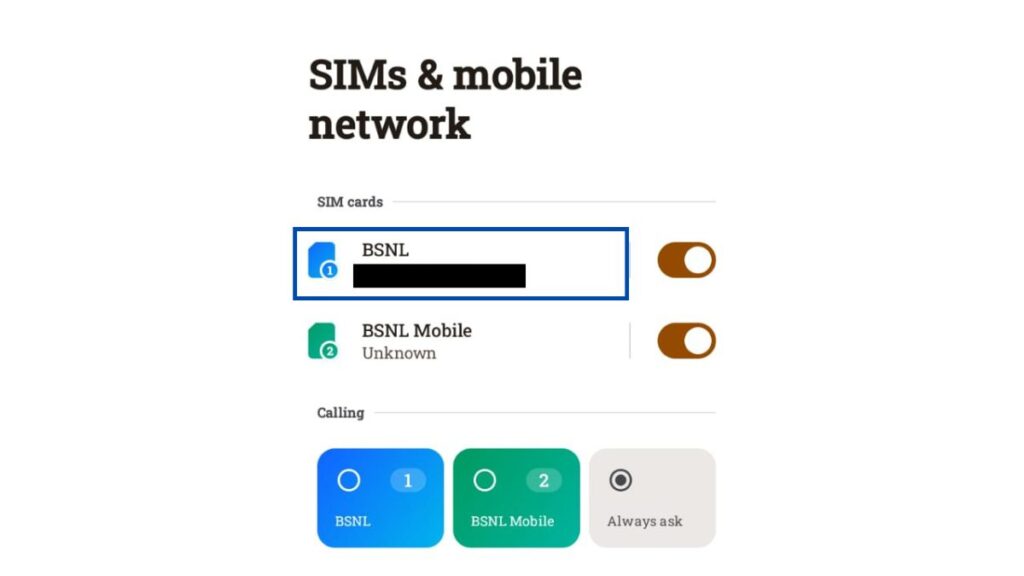
- Click On VoWiFi / Wi-Fi Calling
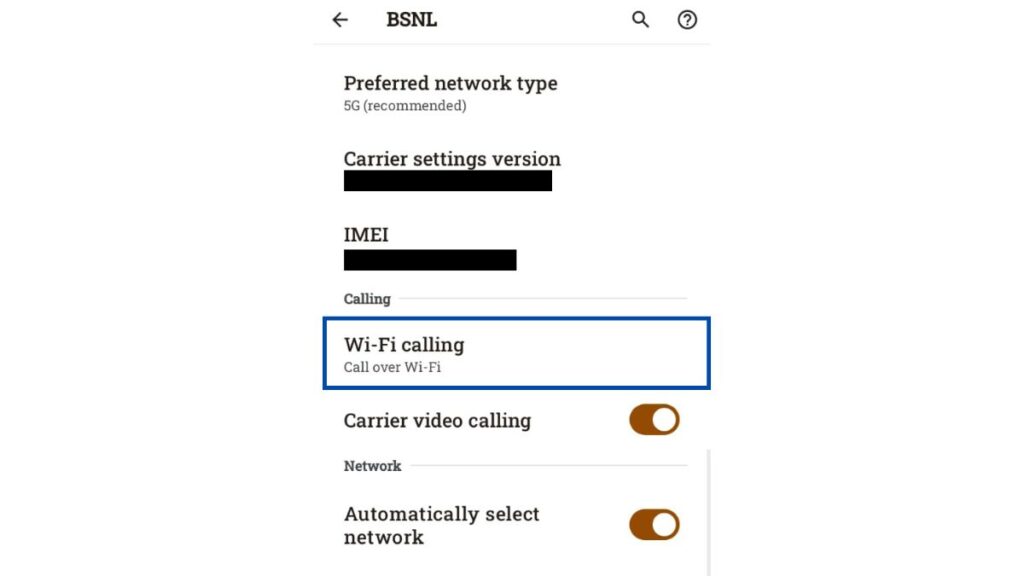
- Turn On Wi-Fi Calling
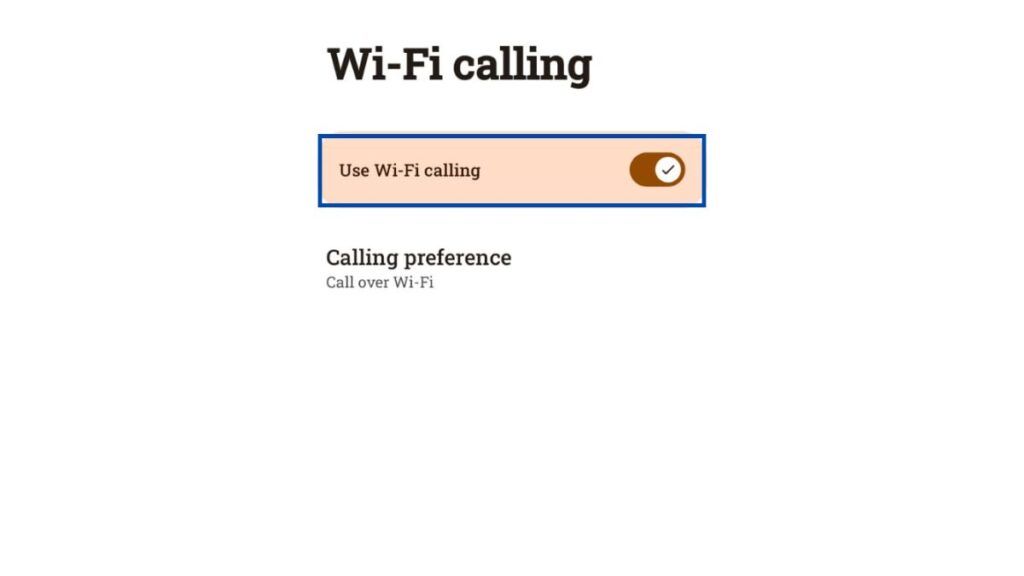
- Turn on VoLTE if it’s not already enabled
Once activated, your phone will automatically use Wi-Fi for calls when the mobile signal is weak.
How to Activate BSNL Wi-Fi Calling on iPhone
If you’re using an iPhone, follow these steps:
- Go to Settings
- Tap Mobile Data
- Select Mobile Data Options
- Tap Wi-Fi Calling
- Turn on Wi-Fi Calling on This iPhone
- Confirm when prompted
After activation, you’ll see “BSNL Wi-Fi” or similar text in the status bar when Wi-Fi Calling is active.
Common Issues and Troubleshooting Tips
If Wi-Fi Calling doesn’t work immediately, try these fixes:
- Restart your phone
- Update your device software
- Remove and reinsert the SIM card
- Ensure VoLTE is enabled
- Reset network settings if needed
If the issue persists, contacting BSNL customer care or visiting a BSNL service center can help.